 Stewara
GuidesWorship
How to put chord charts on an iPad and turn the pages with your foot.
A foot pedal is the cheapest upgrade a worship team can make. The reason it so often refuses to work has nothing to do with the pedal, and everything to do with how the chart is being shown.
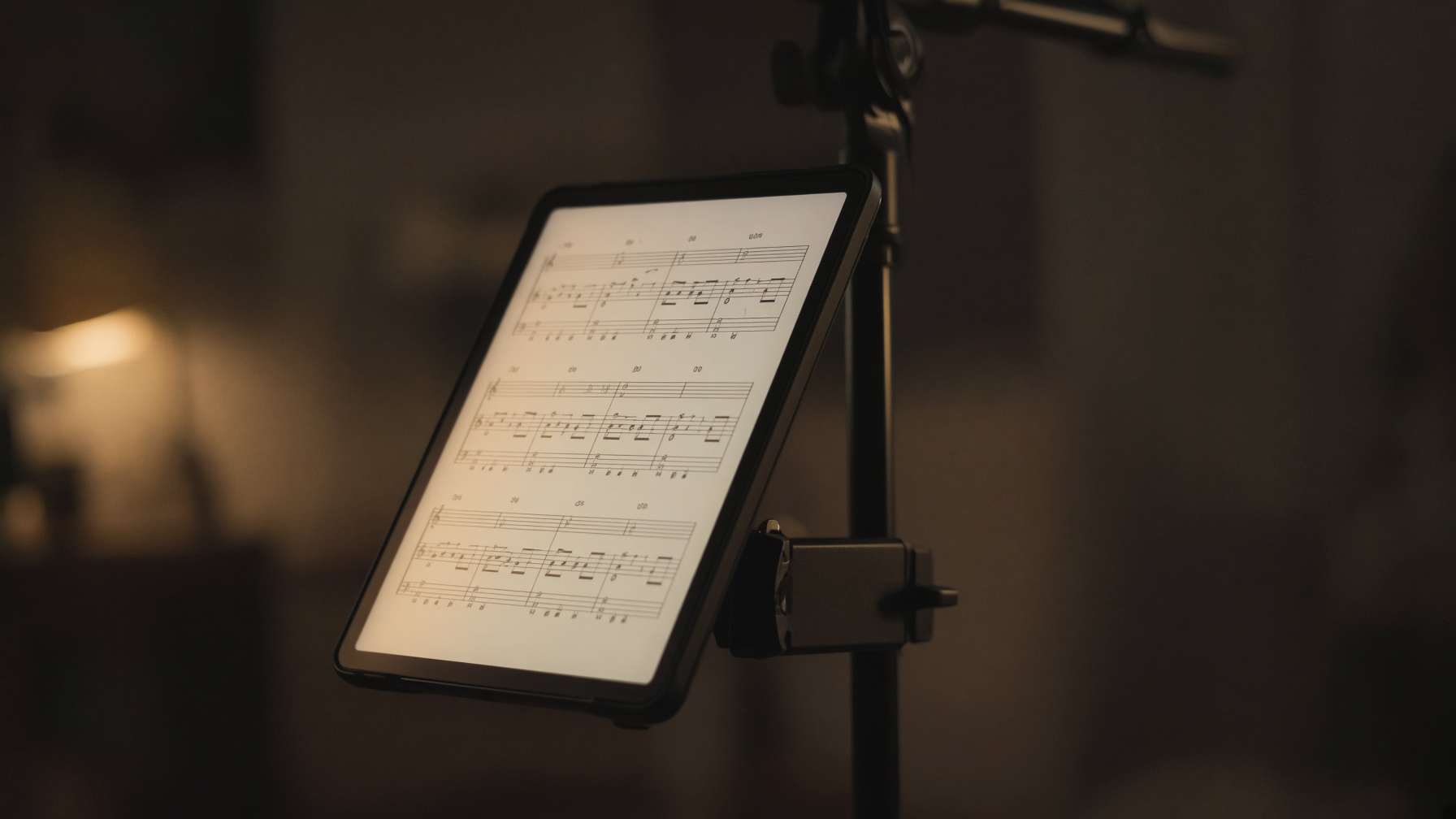
The problem every team finds in the second verse
Paper has one real advantage over a tablet: you can turn a page with a hand that is already busy, badly, in the dark, and it works anyway. Every team that moves to iPads rediscovers this on the first Sunday, usually somewhere in the second verse of the first song.
The answer is a Bluetooth page-turner pedal, and they cost less than a decent microphone cable. The part worth understanding before you buy one is why they work beautifully with some setups and not at all with others.
A page-turner pedal is a keyboard
This is the fact that explains everything else. A page-turner pedal is not a specialized music device speaking a private language. It pairs with your tablet as a Bluetooth keyboard, and each tap sends one ordinary key press, exactly as a keyboard would.
Which key depends on the mode it is set to. Most pedals offer up and down arrows, page up and page down, or left and right arrows, and a musician who used another app before yours will already have theirs configured for whatever that app wanted.
Two things follow from that. There is nothing to install and nothing to pair beyond pairing a keyboard. And any software that listens for those key presses can be driven by the pedal, which means the real question is never whether an app supports pedals. It is whether the app can turn its own pages at all.
Why a PDF often cannot be turned by anything
If your chart is a PDF and the app simply hands that file to the tablet to display, the PDF becomes a sealed box. It does its own scrolling and its own pagination inside that box, and nothing outside can see in or reach in. The app genuinely does not know how many pages the chart has or which one you are looking at. So it cannot turn one, and neither can your foot.
You can usually spot it from the stand. The chart sits in a smaller frame with the app's own background visible around it. The page counter, if there is one, disagrees with the page number printed on the chart itself. And the pedal either does nothing or jumps the whole song instead of turning a page.
The fix is that the software has to draw the pages itself rather than hand the file over. Then the page count is a number it knows, the page you are on is a number it sets, and a pedal tap turns a page the way it does everywhere else.
Two kinds of chart, and only one of them can change key
Before any of this matters, the chart has to get onto the tablet, and there are really only two kinds.
The first is a picture of a chart: a scan, a photo, or a PDF exported from whatever the chart was written in. It shows exactly what was printed, which is often precisely what you want, and it is the fastest way to get a library onto a screen because it is the library you already have.
The second is the chord chart written as text, with the chord names sitting above the words. It looks plainer, and it can do something a picture cannot: because the software knows which symbols are chords, it can rewrite them into another key. Change the key of the song and the chart follows.
Most teams end up with both, and that is fine. What matters is knowing which one you are handing a musician, because only one of them will be in Sunday's key rather than the key it was printed in.
What to look for in any setup
Whatever you end up using, these are the things that decide whether a musician trusts it a second time.
- The whole page, fitted to the screen on both sides. You need the page you are on, not a zoomed slice of it.
- Type sized for four feet away, in the dark, holding an instrument. Document-sized text is too small on a stand, and being able to step it up and have it remembered matters more than it sounds.
- Overlap on page turns. A hard cut to the next screen loses the line you were reading; a little repeated material at the top lets you find your place without hunting.
- A screen that will not sleep, including after you check a message and come back.
- Everything the pedal does, a hand can also do. Someone will forget the pedal or its battery will die, and it will be that Sunday.
- An honest answer about offline. "It stays loaded" and "it works offline" are different claims, and only one of them survives a reload.
How we do it
How Stewara does it
Stewara draws PDF chart pages itself rather than handing the file to the browser, for exactly the reason above: so the pages are ours to turn. The page is fitted to the glass on both axes, drawn at the screen's own resolution so the chords stay sharp, and redrawn when you turn the iPad rather than stretching a stale picture.
The pedal is treated as what it is, a keyboard. Every common mode is accepted, so a pedal already set up for something else keeps working and nobody has to re-teach a volunteer's foot on a Sunday morning. A tap advances a screen before it advances a song, so a five-page chart is five taps rather than one. Going backwards lands you at the end of the previous song rather than its beginning, which is where you actually wanted to be.
Everything the pedal does, a thumb can do, in three ways: two permanent buttons, tap zones down each edge of the screen, and the list of songs along the bottom. That list wraps onto more than one line instead of scrolling sideways, because a horizontal strip that will not take a touch is a dead end with no way out of it.
Page turns keep a little overlap so you do not lose your line, and the page readout is careful to be right about the last page, because on a stand "is there another page?" is the only question it answers. Text starts larger than a document would and remembers what you set it to. The screen is kept awake, and woken again if you leave the app and come back.
Getting there is not something a planner has to arrange. If you are scheduled to play, the link is on your own schedule beside the assignment, labeled "Play charts" and described as "Charts on a stand, turned with a pedal". Being scheduled is the access.
Before you trust it on a Sunday
Two honest limits worth saying out loud, because both are easier to discover in a rehearsal than in a service.
An uploaded PDF or image chart shows what was printed and cannot be transposed; a chart pasted in as text transposes to whatever key the plan is in and follows it if that key changes. And the player is not an offline app. It loads once and holds everything in memory, so a dropped signal mid-service is survivable as long as nobody reloads the page. That is better than it sounds, and it is not the same thing as offline.
- A page-turner pedal is a Bluetooth keyboard. Nothing to install, and it drives anything that listens for key presses.
- If the software hands your PDF to the tablet instead of drawing it, nothing can turn its pages. Not the app, and not your foot.
- Judge a setup on a stand rather than in a demo: whole page, big type, overlap on turns, a screen that stays awake, and a way through the set without the pedal.